Introduction
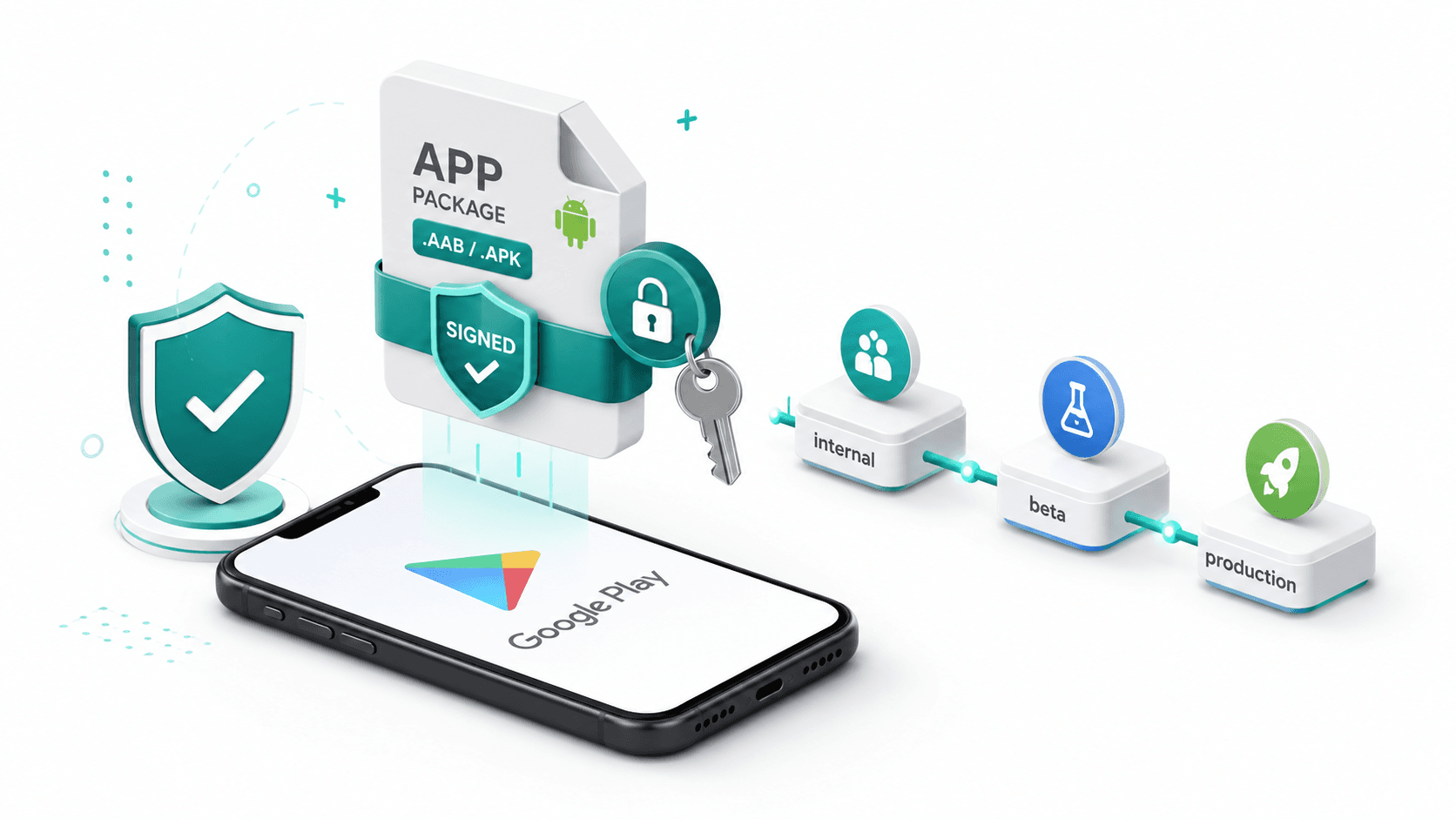
Shipping your Flutter app to the Google Play Store is a multi-step process that trips up many developers the first time. Signing keys, App Bundles, ProGuard, release tracks, store listings, review policies - each step has specific requirements that must be done correctly or your submission gets rejected.
This guide walks through every step of the full Play Store deployment process: from creating your keystore on day one, to automating releases with CI/CD so future deployments require zero manual intervention.
Step 1: Create Your Release Keystore
A keystore is a cryptographic file that signs your Android APK or App Bundle. This signature proves to Google that the app comes from you. Critical: if you lose your keystore, you cannot update your app on the Play Store. Store it securely.
# Generate a new keystore
keytool -genkey -v \
  -keystore ~/keystores/my-app-release.jks \
  -keyalg RSA \
  -keysize 2048 \
  -validity 10000 \
  -alias my-app-key
You will be prompted for:
- Keystore password: choose a strong password, remember it
- Key alias: a name for this key (e.g.,
my-app-key) - Key password: can be the same as keystore password
- Your name, organization, city, country
Store the .jks file somewhere secure - a password manager, encrypted cloud storage, or a hardware key vault. Never commit it to git.
Step 2: Configure Signing in Flutter
Reference the keystore from your Gradle build
Create android/key.properties (add this file to .gitignore):
storePassword=your_keystore_password
keyPassword=your_key_password
keyAlias=my-app-key
storeFile=/Users/yourname/keystores/my-app-release.jks
Update android/app/build.gradle
// Load key.properties at the top of the file
def keystoreProperties = new Properties()
def keystorePropertiesFile = rootProject.file('key.properties')
if (keystorePropertiesFile.exists()) {
    keystoreProperties.load(new FileInputStream(keystorePropertiesFile))
}

android {
    // ...

    signingConfigs {
        release {
            keyAlias keystoreProperties['keyAlias']
            keyPassword keystoreProperties['keyPassword']
            storeFile keystoreProperties['storeFile'] ? file(keystoreProperties['storeFile']) : null
            storePassword keystoreProperties['storePassword']
        }
    }

    buildTypes {
        release {
            signingConfig signingConfigs.release
            // Enable shrinking and obfuscation
            minifyEnabled true
            shrinkResources true
            proguardFiles getDefaultProguardFile('proguard-android-optimize.txt'), 'proguard-rules.pro'
        }
    }
}
Step 3: Configure ProGuard
ProGuard shrinks, optimizes, and obfuscates your release build. Create android/app/proguard-rules.pro:
# Flutter
-keep class io.flutter.app.** { *; }
-keep class io.flutter.plugin.** { *; }
-keep class io.flutter.util.** { *; }
-keep class io.flutter.view.** { *; }
-keep class io.flutter.** { *; }
-keep class io.flutter.plugins.** { *; }

# Firebase (if using)
-keep class com.google.firebase.** { *; }
-keep class com.google.android.gms.** { *; }

# RevenueCat (if using)
-keep class com.revenuecat.purchases.** { *; }

# Gson (if using)
-keepattributes Signature
-keepattributes *Annotation*
-dontwarn sun.misc.**
-keep class com.google.gson.** { *; }
-keep class * implements com.google.gson.TypeAdapterFactory
-keep class * implements com.google.gson.JsonSerializer
-keep class * implements com.google.gson.JsonDeserializer

# Your app's model classes (adjust to your package)
-keep class com.yourcompany.yourapp.models.** { *; }
Step 4: Set App Version
In pubspec.yaml, increment your version number before every release:
# Format: major.minor.patch+buildNumber
# Build number must be incremented for every Play Store upload
version: 1.0.0+1
The part before + is the user-visible version name. The number after + is the build number (versionCode) - it must be higher than any previously uploaded build.
Step 5: Build the App Bundle (AAB)
Google Play requires AAB (Android App Bundle) format for new apps since August 2021. AAB lets Google optimize the download size for each device:
# Build release AAB
flutter build appbundle --release

# Output: build/app/outputs/bundle/release/app-release.aab
The AAB is typically 30-50% smaller than an equivalent APK because Google splits it and delivers only what each device needs.
# If you need an APK for testing (not for Play Store)
flutter build apk --release --split-per-abi

# Outputs separate APKs for arm64-v8a, armeabi-v7a, x86_64
# Much smaller than fat APK
Step 6: Set Up Your Google Play Console Account
- Go to play.google.com/console
- Pay the one-time $25 developer registration fee
- Complete identity verification
- Create a new app: All apps > Create app
- Fill in:
- App name (what users see on the Store)
- Default language
- App or game
- Free or paid
Step 7: Create the Store Listing
A complete store listing is required before your app can be reviewed. Fill in:
Main Store Listing
- Short description (80 characters max): your app's core value proposition
- Full description (4000 characters max): detailed explanation with keywords
- App icon: 512x512 PNG, no transparency, no rounded corners (Google adds them)
- Feature graphic: 1024x500 PNG (shown at top of store listing)
- Screenshots: minimum 2, maximum 8 per device type
- Phone: minimum 1080x1920 or 1920x1080
- Tablet: separate set recommended
Content Rating
Complete the content rating questionnaire (IARC). Most business apps get an "Everyone" rating. Games with violence or mature themes get higher ratings that affect discoverability.
Data Safety Section
This is mandatory since 2022 and highly scrutinized. Accurately declare:
- What data you collect (name, email, device ID, etc.)
- Why you collect it (app functionality, analytics, etc.)
- Whether data is shared with third parties
- Whether users can request data deletion
Inaccurate data safety declarations are a common reason for rejection.
Step 8: Release Tracks
Play Store uses a tiered release system. Use them in order:
Internal Testing (up to 100 testers, instant publish)
        |
Closed Testing / Alpha (defined list of testers)
        |
Open Testing / Beta (anyone can join)
        |
Production (all users, percentage rollout available)
Upload to Internal Testing First
- Dashboard > Testing > Internal testing > Create new release
- Upload your
.aabfile - Add release notes
- Save > Review release > Start rollout
Internal testing releases go live within minutes. Use this track to share with your team before anything goes to real users.
Uploading a New Release
For every subsequent release:
# Increment version in pubspec.yaml first
# version: 1.0.1+2  (build number must increase)

flutter build appbundle --release
# Upload the new .aab to Play Console
Step 9: Moving to Production
Before promoting to production, complete:
- App content review: ensure your app content matches your store listing and content rating
- Privacy policy URL: required for all apps that request any permissions
- Target API level: must target Android 14 (API 34) or higher as of August 2024
- Production release: set rollout percentage (start with 10-20% to catch issues before full rollout)
Staged Rollout
Production release > New release > Set rollout percentage: 10%
Monitor crash rates and ANR (Application Not Responding) rates in Android Vitals. If metrics look good after 24-48 hours, increase to 50%, then 100%.
Step 10: Automating with CI/CD (Fastlane)
For teams shipping weekly or more frequently, manual Play Store uploads are unsustainable. Fastlane automates the entire process:
gem install fastlane
cd android
fastlane init
Create android/fastlane/Fastfile:
default_platform(:android)

platform :android do
  desc "Deploy to Play Store Internal Track"
  lane :internal do
    # Build Flutter AAB
    sh("flutter build appbundle --release")

    # Upload to Play Store internal track
    upload_to_play_store(
      track: 'internal',
      aab: '../build/app/outputs/bundle/release/app-release.aab',
      json_key: 'fastlane/google-play-api-key.json',
      skip_upload_metadata: true,
      skip_upload_images: true,
      skip_upload_screenshots: true,
    )
  end

  desc "Promote internal to production"
  lane :promote_to_production do
    upload_to_play_store(
      track: 'internal',
      track_promote_to: 'production',
      json_key: 'fastlane/google-play-api-key.json',
      rollout: '0.1',
    )
  end
end
For the json_key, create a Google Play Android Developer API service account:
- Google Play Console > Setup > API access
- Link to a Google Cloud project
- Create a service account with "Release Manager" permissions
- Download the JSON key file
Step 11: GitHub Actions Automation
Full CI/CD pipeline that triggers on every merge to main:
# .github/workflows/android-deploy.yml
name: Deploy Android to Play Store

on:
  push:
    branches: [main]

jobs:
  deploy:
    runs-on: ubuntu-latest

    steps:
      - uses: actions/checkout@v4

      - name: Setup Java
        uses: actions/setup-java@v4
        with:
          java-version: '17'
          distribution: 'temurin'

      - name: Setup Flutter
        uses: subosito/flutter-action@v2
        with:
          flutter-version: '3.24.0'

      - name: Get dependencies
        run: flutter pub get

      - name: Run tests
        run: flutter test

      - name: Decode keystore
        run: |
          echo "${{ secrets.KEYSTORE_BASE64 }}" | base64 --decode > android/app/release.jks

      - name: Create key.properties
        run: |
          cat > android/key.properties << EOF
          storePassword=${{ secrets.KEYSTORE_PASSWORD }}
          keyPassword=${{ secrets.KEY_PASSWORD }}
          keyAlias=${{ secrets.KEY_ALIAS }}
          storeFile=release.jks
          EOF

      - name: Build App Bundle
        run: flutter build appbundle --release

      - name: Upload to Play Store
        uses: r0adkll/upload-google-play@v1
        with:
          serviceAccountJsonPlainText: ${{ secrets.GOOGLE_PLAY_SERVICE_ACCOUNT_JSON }}
          packageName: com.yourcompany.yourapp
          releaseFiles: build/app/outputs/bundle/release/app-release.aab
          track: internal
          status: completed
Store in GitHub Secrets:
KEYSTORE_BASE64:base64 -i release.jks | pbcopyKEYSTORE_PASSWORD,KEY_PASSWORD,KEY_ALIASGOOGLE_PLAY_SERVICE_ACCOUNT_JSON: the JSON key file contents
Common Rejection Reasons and Fixes
| Rejection Reason | Fix |
|---|---|
| Inaccurate data safety declaration | Audit every SDK you use and declare all data collection |
| Missing privacy policy | Add a privacy policy URL in App Content settings |
| App crashes on launch | Test release build on a physical device before submitting |
| Misleading store listing | Match screenshots to actual app UI |
| Target API level too low | Set targetSdkVersion 34 in build.gradle |
| Permissions not justified | Add <permission-rationale> or remove unused permissions |
| Unsafe cryptography | Use Android Keystore system, not custom encryption |
Conclusion
Play Store deployment requires attention to detail at every step - keystore security, App Bundle format, ProGuard rules, accurate data safety declarations, and staged rollouts. Getting each step right means faster review times and fewer surprises after launch.
The investment in CI/CD automation (GitHub Actions + Fastlane) pays for itself after the second or third release. Once configured, shipping a new build to internal testers becomes a single git push - and promoting to production is a one-click action in the Play Console.
Need help setting up Android deployment or CI/CD automation for your app? I configure end-to-end Android deployment pipelines including signing, automated testing, Play Store uploads, and staged rollouts. Book a meeting to automate your Android releases.
Written by Moeen Ahmad, Senior Software Engineer working across mobile apps, backend systems, cloud deployments, and AI-powered products. I write about practical engineering, real project lessons, and building software that actually ships.
Interested in working together?
Let's discuss your project and explore how I can help bring it to life.