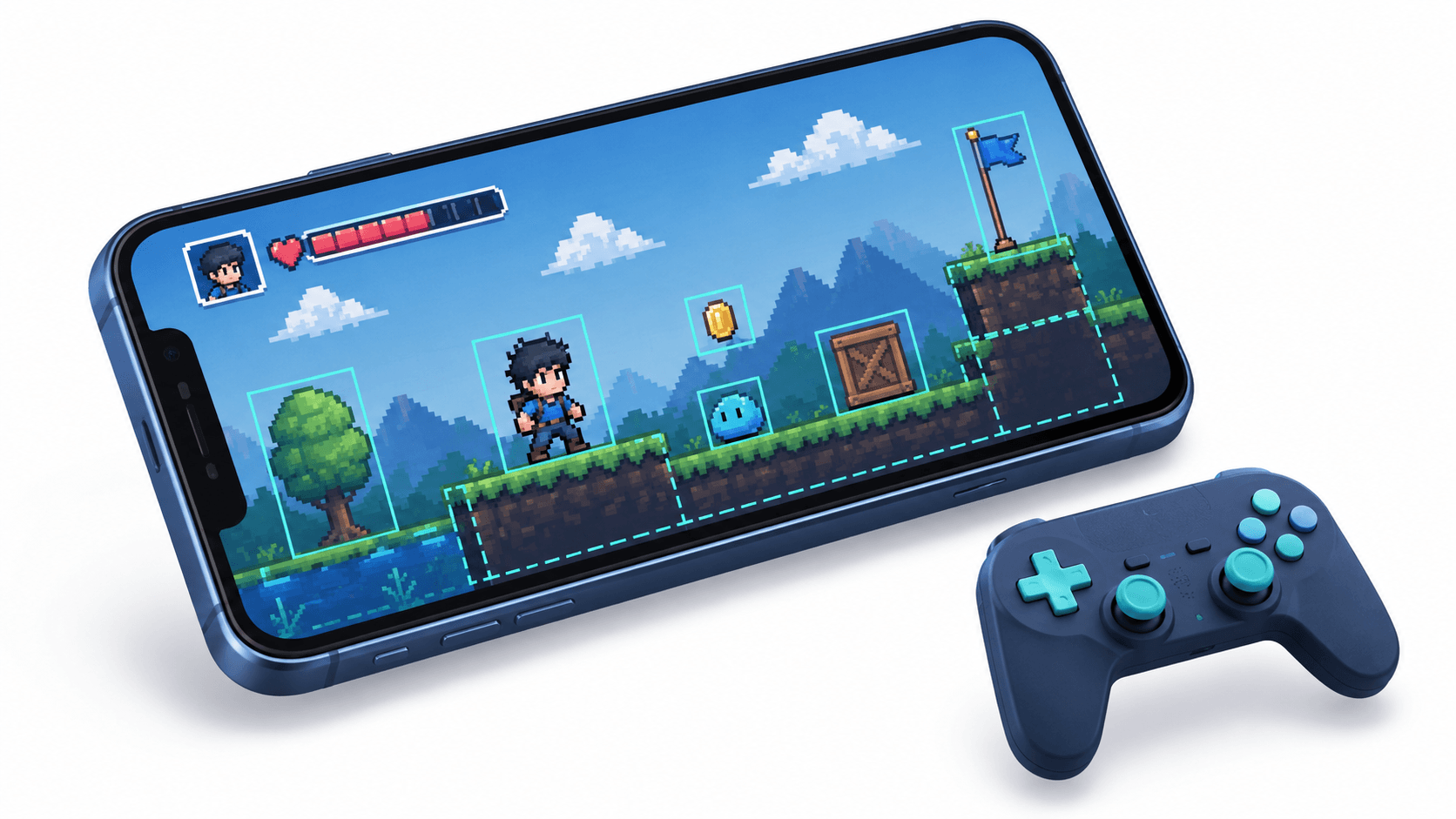
Introduction
When most developers think of Flutter, they think of beautiful business apps, dashboards, and e-commerce UIs. But Flutter has a secret weapon for game developers: the Flame engine - a modular, production-ready 2D game framework built entirely on top of Flutter.
Flutter is surprisingly well-suited for game development. Its rendering engine draws every pixel using the Skia/Impeller graphics pipeline - the same pipeline that makes Flutter UIs so smooth. That rendering foundation, combined with Dart's async capabilities and Flame's game-specific abstractions, gives you everything you need to ship a real mobile game.
This guide walks you through building a complete 2D mobile game in Flutter - from the game loop to sprites, physics, collision detection, audio, and deployment.
Why Flutter for Games?
Before diving into code, here is why Flutter plus Flame is a legitimate choice:
- Single codebase, iOS and Android - ship to both stores from one project
- Dart is fast - compiled to native ARM, not interpreted
- Flutter renders everything - no native UI components to work around
- Flame is mature - 8,000+ GitHub stars, used in published games
- Mix game and Flutter UI - overlay traditional Flutter widgets on top of your game canvas (menus, HUDs, pause screens)
Setting Up Your Flutter Game Project
flutter create my_game
cd my_game
Add Flame and supporting packages to pubspec.yaml:
dependencies:
  flutter:
    sdk: flutter
  flame: ^1.18.0
  flame_audio: ^2.10.0
  flame_tiled: ^1.20.0      # For Tiled map editor support
  flame_forge2d: ^0.18.0    # Box2D physics (optional)
The Game Loop: How Flame Works
Every Flame game is built around two fundamental methods:
// lib/my_game.dart
import 'package:flame/game.dart';
import 'package:flutter/material.dart';

class MyGame extends FlameGame {
  @override
  Future<void> onLoad() async {
    // Called once when the game starts
    // Load assets, create components, set up the world
  }

  @override
  void update(double dt) {
    // Called every frame (60fps target)
    // dt = delta time in seconds since last frame
    // Move characters, check collisions, update physics
    super.update(dt);
  }

  @override
  void render(Canvas canvas) {
    // Called every frame after update()
    // Draw everything to the canvas
    super.render(canvas);
  }
}

// In main.dart
void main() {
  runApp(GameWidget(game: MyGame()));
}
The dt (delta time) parameter is critical. Always multiply movement by dt to keep your game frame-rate independent:
// Wrong - speed depends on frame rate
position.x += 5;

// Correct - speed is always 200 pixels per second regardless of frame rate
position.x += 200 * dt;
Components: The Building Blocks of a Flame Game
Everything in a Flame game is a Component - a reusable unit with its own update and render logic. You compose games by adding components to the game world.
Creating a Player Component
// lib/components/player.dart
import 'package:flame/components.dart';
import 'package:flame/collisions.dart';
import 'package:flutter/services.dart';

class Player extends SpriteAnimationComponent
    with HasGameRef<MyGame>, KeyboardHandler, CollisionCallbacks {

  static const double speed = 200;
  Vector2 velocity = Vector2.zero();

  Player() : super(size: Vector2(48, 48));

  @override
  Future<void> onLoad() async {
    // Load a sprite sheet (8 frames, each 48x48 pixels)
    final spriteSheet = await gameRef.images.load('player_sheet.png');

    animation = SpriteAnimation.fromFrameData(
      spriteSheet,
      SpriteAnimationData.sequenced(
        amount: 8,
        stepTime: 0.1,
        textureSize: Vector2(48, 48),
      ),
    );

    // Set the player's starting position to center of screen
    position = gameRef.size / 2;

    // Add a hitbox for collision detection
    add(RectangleHitbox());
  }

  @override
  bool onKeyEvent(KeyEvent event, Set<LogicalKeyboardKey> keysPressed) {
    velocity = Vector2.zero();

    if (keysPressed.contains(LogicalKeyboardKey.arrowLeft)) {
      velocity.x = -speed;
    }
    if (keysPressed.contains(LogicalKeyboardKey.arrowRight)) {
      velocity.x = speed;
    }
    if (keysPressed.contains(LogicalKeyboardKey.arrowUp)) {
      velocity.y = -speed;
    }
    if (keysPressed.contains(LogicalKeyboardKey.arrowDown)) {
      velocity.y = speed;
    }

    return true;
  }

  @override
  void update(double dt) {
    position += velocity * dt;

    // Keep player within screen bounds
    position.clamp(
      Vector2.zero(),
      gameRef.size - size,
    );

    super.update(dt);
  }

  @override
  void onCollisionStart(
    Set<Vector2> intersectionPoints,
    PositionComponent other,
  ) {
    if (other is Enemy) {
      // Player touched enemy - handle damage
      gameRef.playerHit();
    }
    super.onCollisionStart(intersectionPoints, other);
  }
}
Adding the Player to the Game
class MyGame extends FlameGame with HasCollisionDetection, KeyboardEvents {
  late Player player;

  @override
  Future<void> onLoad() async {
    await super.onLoad();

    // Add background
    add(SpriteComponent(
      sprite: await loadSprite('background.png'),
      size: size,
    ));

    // Add player
    player = Player();
    add(player);
  }
}
Sprite Animations
Flame handles sprite sheets (a single image containing multiple animation frames) cleanly:
// Load idle animation (4 frames in a row)
final idleAnimation = await loadSpriteAnimation(
  'hero_idle.png',
  SpriteAnimationData.sequenced(
    amount: 4,
    stepTime: 0.15,
    textureSize: Vector2(64, 64),
  ),
);

// Load run animation (6 frames in a row)
final runAnimation = await loadSpriteAnimation(
  'hero_run.png',
  SpriteAnimationData.sequenced(
    amount: 6,
    stepTime: 0.1,
    textureSize: Vector2(64, 64),
  ),
);

// Use SpriteAnimationGroupComponent to switch between states
class AnimatedPlayer extends SpriteAnimationGroupComponent {
  @override
  Future<void> onLoad() async {
    animations = {
      'idle': idleAnimation,
      'run': runAnimation,
      'jump': jumpAnimation,
    };

    current = 'idle';
  }

  void startRunning() => current = 'run';
  void stopRunning() => current = 'idle';
}
Collision Detection
Flame has a built-in collision detection system using hitboxes:
class Enemy extends SpriteComponent with CollisionCallbacks {
  @override
  Future<void> onLoad() async {
    sprite = await Sprite.load('enemy.png');
    size = Vector2(40, 40);

    // Circular hitbox for round enemies
    add(CircleHitbox());
  }

  @override
  void onCollisionStart(
    Set<Vector2> intersectionPoints,
    PositionComponent other,
  ) {
    if (other is Bullet) {
      // Enemy was shot - remove it and add score
      removeFromParent();
    }
  }
}

class Bullet extends CircleComponent
    with CollisionCallbacks, HasGameRef<MyGame> {

  static const double speed = 400;
  final Vector2 direction;

  Bullet({required this.direction})
      : super(radius: 6, paint: Paint()..color = const Color(0xFFFFFF00));

  @override
  Future<void> onLoad() async {
    add(CircleHitbox());
  }

  @override
  void update(double dt) {
    position += direction * speed * dt;

    // Remove bullet if it goes off screen
    if (position.x < 0 ||
        position.x > gameRef.size.x ||
        position.y < 0 ||
        position.y > gameRef.size.y) {
      removeFromParent();
    }

    super.update(dt);
  }
}
Particle Effects
Flame has a powerful particle system for effects like explosions, smoke, and sparks:
void spawnExplosion(Vector2 position) {
  add(
    ParticleSystemComponent(
      particle: Particle.generate(
        count: 20,
        lifespan: 0.8,
        generator: (i) => AcceleratedParticle(
          acceleration: Vector2(0, 300), // gravity
          speed: Vector2(
            (Random().nextDouble() - 0.5) * 300,
            -Random().nextDouble() * 200,
          ),
          child: CircleParticle(
            radius: 4,
            paint: Paint()
              ..color = Colors.orange.withOpacity(0.8),
          ),
        ),
      ),
    )..position = position,
  );
}
Game Audio
import 'package:flame_audio/flame_audio.dart';

class MyGame extends FlameGame {
  @override
  Future<void> onLoad() async {
    // Preload all audio assets
    await FlameAudio.audioCache.loadAll([
      'background_music.mp3',
      'shoot.wav',
      'explosion.wav',
      'pickup.wav',
    ]);

    // Start looping background music
    FlameAudio.bgm.play('background_music.mp3', volume: 0.5);
  }

  void playShootSound() {
    FlameAudio.play('shoot.wav', volume: 0.8);
  }

  void playExplosionSound() {
    FlameAudio.play('explosion.wav');
  }

  @override
  void lifecycleStateChange(AppLifecycleState state) {
    // Pause music when app is backgrounded
    if (state == AppLifecycleState.paused) {
      FlameAudio.bgm.pause();
    } else if (state == AppLifecycleState.resumed) {
      FlameAudio.bgm.resume();
    }
  }
}
Tiled Maps: Level Design
For complex levels, use the Tiled map editor to design levels visually, then load them in Flame:
import 'package:flame_tiled/flame_tiled.dart';

class Level extends World {
  final String levelName;

  Level({required this.levelName});

  @override
  Future<void> onLoad() async {
    // Load .tmx file exported from Tiled editor
    final tiledMap = await TiledComponent.load(
      '$levelName.tmx',
      Vector2.all(16), // tile size
    );
    add(tiledMap);

    // Read object layers to spawn enemies and items at designer-placed positions
    final objectLayer = tiledMap.tileMap.getLayer<ObjectGroup>('Objects');
    for (final object in objectLayer?.objects ?? []) {
      switch (object.class_) {
        case 'Enemy':
          add(Enemy()..position = Vector2(object.x, object.y));
          break;
        case 'Pickup':
          add(Pickup()..position = Vector2(object.x, object.y));
          break;
        case 'PlayerSpawn':
          add(Player()..position = Vector2(object.x, object.y));
          break;
      }
    }
  }
}
Overlaying Flutter UI on Your Game
One of Flame's most powerful features: you can put regular Flutter widgets on top of your game canvas. Pause menus, HUDs, and score displays are all just Flutter widgets:
GameWidget(
  game: MyGame(),
  overlayBuilderMap: {
    'PauseMenu': (context, game) => PauseMenuWidget(game: game as MyGame),
    'GameOver': (context, game) => GameOverWidget(game: game as MyGame),
    'HUD': (context, game) => HUDWidget(game: game as MyGame),
  },
  initialActiveOverlays: const ['HUD'],
)

// In game code, toggle overlays
gameRef.overlays.add('PauseMenu');
gameRef.overlays.remove('HUD');
Performance Tips for Flutter Games
- Use
SpawnComponentfor pooling - avoid creating and destroying objects constantly - Preload all assets in
onLoad()- never load assets during gameplay - Use
RectangleHitboxoverPolygonHitbox- simpler hitboxes are faster - Limit particle counts - keep per-explosion particle count under 30
- Use
debugMode = trueduring development to visualize hitboxes:
class MyGame extends FlameGame {
  @override
  bool debugMode = true; // Shows hitboxes, component boundaries
}
Conclusion
Flutter with the Flame engine is a surprisingly capable platform for 2D mobile game development. The combination of Dart's performance, Flutter's rendering pipeline, and Flame's mature game abstractions means you can build polished, shippable games without leaving the Flutter ecosystem.
The key advantages are real: a single codebase for iOS and Android, the ability to overlay standard Flutter UI on your game canvas, and a component model that keeps your game code organized as complexity grows.
Start with a simple game - a runner, a shooter, or a puzzle. Get the game loop working, add collision detection, layer in audio. The path from prototype to published game is shorter than you think when you are already comfortable in Flutter and Dart.
Want to build a custom mobile game or interactive experience for your brand? I design and develop 2D mobile games, interactive apps, and gamified product experiences using Flutter and the Flame engine. Book a meeting to bring your game idea to life.
Written by Moeen Ahmad, Senior Software Engineer working across mobile apps, backend systems, cloud deployments, and AI-powered products. I write about practical engineering, real project lessons, and building software that actually ships.
Interested in working together?
Let's discuss your project and explore how I can help bring it to life.